Want to practice first? Open the Video Frame Extractor and choose Try with a sample video. Scrub to any moment, save a frame, and check your browser’s Downloads before trying your own clip.
Start with the video in your gallery
Recordings from your phone normally appear in Gallery or Google Photos. Open our frame extractor in Chrome, tap Choose video, and select the original file rather than a messaging-app copy that might be recompressed. Browser permission is limited to the file you select.
Scrub to the action
Play or scrub to the moment, then use the frame controls to adjust the time. The FPS selector is an estimate used for stepping; actual browser video seeking is not guaranteed to land on every encoded frame. Compare nearby moments instead of relying on a single step.
Export and inspect
Choose JPG for smaller photos or PNG if you prefer lossless encoding from the decoded frame. The output dimensions match the decoded video frame when device memory allows. Open the saved photo and check eyes, motion blur, and whether the subject is in focus.
When it does not work
Some HEVC/H.265 or camera-specific video variants are unsupported by certain browsers. Try the same file in another modern browser or export a standard H.264 MP4 copy from your video editor. A large 4K file can also strain mobile memory.
Testing disclosure: The example above was generated using Chromium's mobile viewport automation. It does not establish that every Android model or codec will behave the same way.
- If the browser offers a download prompt, approve it and check your Downloads folder. Some Android gallery apps do not immediately index new downloads.
- If the video opens but the preview remains black, seek slightly away from the beginning, then try a different file or browser.
- For footage sent by a messaging app, retrieve the original recording if available. Messaging apps often reduce resolution or compression quality.
- If a 4K clip fails, test with a short clip first. Decoding and exporting are limited by the phone's memory and browser, not by our server.
Android download and file troubleshooting
To check your own result, open your original recording's Details screen and note its pixel dimensions. If it is a 1920 × 1080 video, a full-resolution landscape export should normally be 1920 × 1080 pixels, unless the browser rotates or crops the decoded frame. Compare the saved picture's Details to the source. Canvas export preserves decoded dimensions, but it cannot restore detail that was never recorded.
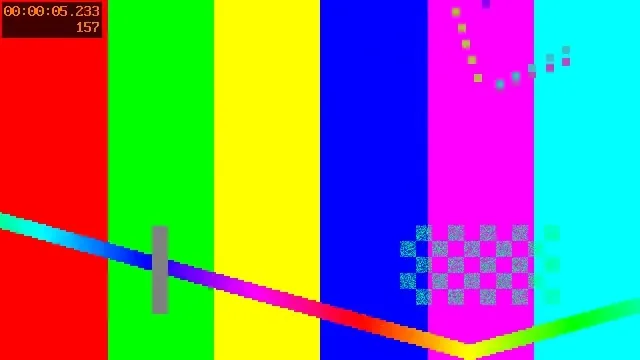
A reproducible extraction check
Related guides
Separate selection from saving
If the gallery shows a video but the browser cannot read it, make a local copy and select it from the device file picker. After export, check Chrome Downloads or the phone’s Files app. A downloaded image may not appear immediately in the gallery.